Perform factory reset
A factory reset removes all user data and restores the selected device back to default factory settings. It can only be applied to a company-owned device.
- Android devices only. When a factory reset is performed on a device where the company is the Work Profile, all data is removed, but the device is not restored to factory reset.
- Windows devices only. You can perform a factory reset only on the devices that have a recovery partition. Attempting to factory reset a device that does not have a recovery partition results in an error.
- iOS devices only. iOS restore is not supported. Attempting to install a profile after restoring a backup to an iOS device results in an error. You must re-enroll the device.
- Samsung Knox, Apple DEP, Android Zero-Touch, and Windows Autopilot devices only. When you perform a factory reset, the applicable software and settings are removed from the device, but the device is not removed from your organization’s management. If you want to unregister the device, contact your organization's IT administratior.
|
|
NOTE: If a user initiates a factory reset of their managed device, KACE Cloud may not be aware of that action, for example, if the device does not have network connection. |

To perform a factory reset on either device type:
- Select the Devices tab in top navigation.
- Select a device from the list.
- In the right panel, click the More Actions dropdown and select Factory Reset.
- To initiate the factory reset, click Confirm.
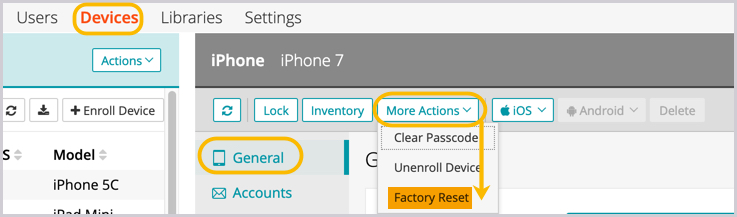
Once confirmed, a factory reset cannot be undone.